How to Extract Color Palette from Any Image in Seconds (Free Tool)
Introduction
The primary difficulty in project development is achieving a professional appearance without formal design training. You pick a few colors that look okay, but when you put them on your website or Instagram, something just feels... off.
The secret pros use is simple: they steal their colors from nature or high-quality photos. I've been using a tool called FreeOnlineColorPicker to do exactly that. It's a free, no-nonsense way to turn any photo into a perfect color scheme. No more guessing, no more ugly color combos. Let's look at how to master it in about 20 seconds.
Why Extracting Color Palettes from Images Matters
Branding Looks More Consistent
If you're a coffee shop owner, for example, and you use the same earthy brown and green colors from your shop's walls in your menu, packaging, and Instagram posts, people will instantly recognize your brand.
Using an online color palette generator can help you create authentic palettes like this. No more guessing or trying to recreate colors manually. Just pick the color directly from the image, get the hex codes, and use them in your CSS.
Saves Hours of Guessing and Tweaking
In my experience, the biggest headache in a project is the endless 'color-tweaking' loop. But this tool saves time. Instead of spending hours trying to get the perfect color, you can get a palette ready in just a couple of minutes.
Upload image, click color, copy hex code. Done in 20 seconds.
Websites and Apps Instantly Look More Professional
It's very useful for UI design and websites. Like, if you're making a nature-themed game app, you can extract greens from a forest photo and use them for the background, buttons, and icons. The result? Your app will have a natural, professional vibe that feels connected.
Marketing, Emotion, and Color Psychology
In Marketing, you can extract colors from image online, create ads, and increase sales with consistency. It sets the mood and emotion. Like, red and orange sunsets give energy, while blue oceans are calming. By extracting hex colors from images, you can make the right psychological choices.
How to Extract Colors from an Image (Step-by-Step Guide)
Simple way to extract colors from image online using this free online color picker on freeonlinecolorpicker. It's like an image color picker online, no need to download anything, and it works right in your browser. I use it all the time for my designs or when I'm trying to match colors for blog graphics. To begin, do this:
Step 1 – Open the Website
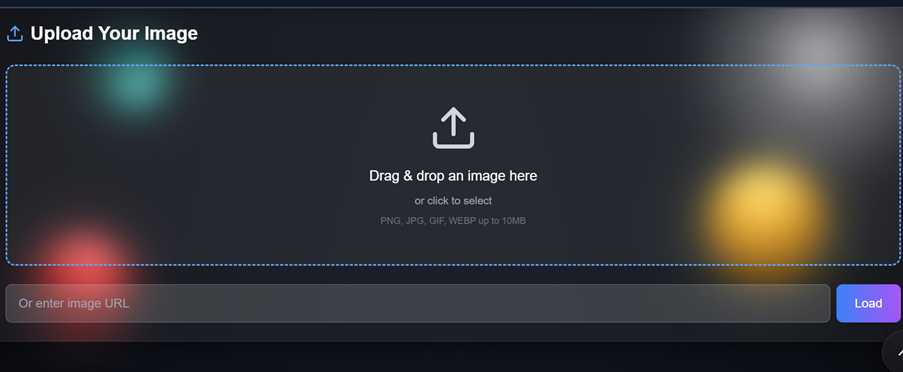
Just open Freeonlinecolorpicker.com in your browser. The page loads quick, and you'll see a big area that says to upload your image.

Step 2 – Upload or Load Your Image
You can click on the area to browse your computer and pick a photo (it supports JPG, PNG, GIF, even WEBP, up to 10MB). Or just drag and drop the image file right there. If your image is online, you can paste the URL and hit "Load Image." It shows up instantly on your screen.
Step 3 – Pick Any Color from the Image
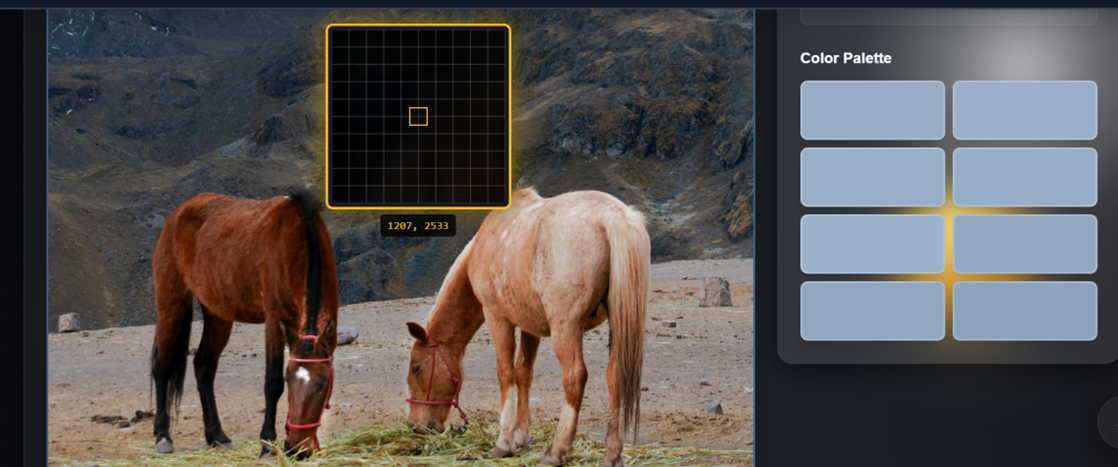
Now your image is on the screen. Just move your mouse over it – the cursor turns into a picker thing. Click on any spot, like the exact shade on a flower or whatever. Right away, it shows you a big swatch of that color with the codes: HEX (like #FF5733), RGB (red green blue numbers), and HSL.
Step 4 – Copy HEX, RGB, or HSL Codes
Next to each code there's a little copy button (looks like a clipboard). Click it, and it copies to your clipboard – you'll see a checkmark. Then you can paste it into Photoshop, Canva, CSS for your website, or wherever.
For web design, I always grab the hex rgb color picker values because they're easiest to work with in CSS.
Step 5 – Build a Complete Color Palette
If you want more than just one-off colors, sample 4-6 shades from different parts of your image. Mix highlights, midtones, and shadows to create depth.
The color extractor from image feature automatically adjusts to show you all your selected colors in a row, making it easy to visualize how they work together.
Pro Tips for Getting Better Color Extraction Results
Use High-Resolution Images
Use High-Res Images: Crappy quality = crappy colors. If you're pulling from a compressed JPEG, you might get muddy tones.
Sample Highlights, Midtones, and Shadows
Sample Multiple Areas: Don't just click one spot. Grab a few shades from different parts of the image—highlights, midtones, shadows. This gives you a more versatile palette.
Check Contrast for Accessibility
Check Contrast: After extracting, make sure your text colors have enough contrast against backgrounds. Use a contrast checker tool if you're designing for accessibility.
Save and Organize Your Palettes
Save Your Palettes: Some tools let you save or export palettes as .ASE files (for Adobe) or just a list of hex codes. Do this so you don't have to re-extract later.
Consider Lighting and Mood
Consider Lighting: Colors look different under various lighting conditions. If you're extracting from a sunset photo, those oranges might be too vibrant for a corporate website. Adjust accordingly.
Test Colors Across Multiple Screens
Test on Multiple Screens: What looks great on your Mac might look different on a cheap Windows laptop or phone screen. Check your colors across devices.
Best Tools for Extracting Colors from Images
Coolors.co Image Picker
Coolors is famous for generating palettes, but their image uploader is killer. Drop a photo, and it pulls out 5-10 harmonious colors instantly. You can adjust, lock favorites, or export for design apps. Perfect if you want a full scheme, not just one color.
Canva Color Palette Generator
If you're already in Canva (who isn't?), upload any image and it spits out a ready-to-use palette. Great for beginners – drag it straight into your designs. No account needed for basic use, but logging in saves it.
Adobe Color – Create from Image
Adobe's free tool lets you upload and it auto-extracts themes (like moody, vibrant). You can tweak moods or pick manually. Integrates with their apps if you have them, but works standalone too.
FreeOnlineColorPicker.com
Five tools in one—Image Color Picker, Color Code Generator, Color Wheel, Palette Generator, and Color Converter.
The Image Color Picker is the star here. Upload an image, use the eyedropper to sample exact pixels, get all color formats instantly.
Tool Comparison Table
Feature-by-Feature Comparison of Popular Color Pickers
| Tool | Client-Side (No Upload) | Ad-Free | Precise Pixel Picker | Auto Palette | Advanced Editing | Best For |
|---|---|---|---|---|---|---|
| Coolors.co | No | Yes (basic) | Limited | Yes | High | Harmonious palettes |
| Canva | No | Yes | No | Yes | Medium | Canva users |
| Adobe Color | No | Yes | Yes | Yes | High | Pro harmony themes |
| FreeOnlineColorPicker.com | Yes | Yes | Yes | Yes | Medium | Privacy + multi-tools |
Common Mistakes People Make When Extracting Colors
Even with the best color palette tool, people still mess this up. Here's what to watch out for.
Using Too Many Colors
Your extracted palette might have 10 colors. Doesn't mean you should use all of them. Stick to 3–5 main colors max. The rest can be accents or used sparingly. Too many colors = visual chaos.
Ignoring Color Contrast
Just because two colors are in the same image doesn't mean they work well together for text. Always check contrast ratios, especially for accessibility. Aim for at least 4.5:1 for body text, 3:1 for larger text.
After extracting with FreeOnlineColorPicker, test your combinations. Dark text on light backgrounds, light text on dark backgrounds—make sure there's enough difference.
Not Adjusting Colors for Context
Colors behave differently depending on what's around them. A shade that looks great in a photo might be too intense for a website background. Test your colors in context before committing.
Extracting from Low-Quality Images
Compressed JPEGs or tiny thumbnails give you muddy, inaccurate colors. Always work from the highest quality source image possible. If you're pulling from a website screenshot, try to get the original image file instead.
Forgetting Neutral Colors
Extracted palettes are usually bright and bold. That's great, but you also need neutrals (grays, off-whites, blacks) for balance. Don't just use extracted colors—add complementary neutrals to ground your design.
Grab some neutral tones from the shadows or lighter areas of your image, or use the Color Wheel on FreeOnlineColorPicker to find balanced grays that complement your main colors.
Not Saving Color Palettes
You extract the perfect palette, use it once, then lose the codes. Always save your palettes—export as a text file, save in your design tool, or keep a running doc of project colors. Some designers screenshot their palette with labels. Whatever works, just don't lose them.
Conclusion
So there you have it—everything you need to know about extracting color palette from image files and actually using them in real projects.
At the end of the day, you don't need a degree in graphic design to create a professional look—you just need the right starting point. By pulling colors directly from high-quality images or nature, you're using "shortcuts" that guaranteed-pro results because those colors already work together in the real world.
Whether you're building a website, designing a social media post, or just experimenting with a new brand identity, FreeOnlineColorPicker.com takes the guesswork out of the process. It's fast, private, and gives you the exact codes you need to stay consistent across everything you create.
Ready to find your perfect palette? Don't let "color-tweaking" waste any more of your time. Head over to FreeOnlineColorPicker.com, now upload your favorite photo, and grab your custom hex codes in seconds. Your next design is going to look amazing!
Frequently Asked Questions (FAQs)
1. Do I need to create an account to use the tool?
No, you do not need to sign up or create any account to get started. You can use the free online color picker immediately without giving any info. Just visit the website, upload your image, and start picking colors for free.
2. Is my image kept private and secure?
Yes, we take your privacy very seriously while you use our online tools. Your images are processed inside your browser and are never saved on our servers. You can extract colors from image online without worrying about your data.
3. Can I use this color picker on my smartphone?
Yes, our website is fully responsive and works perfectly on all mobile devices. You can snap a photo or use a screenshot to get colors while you are on the go. It is the easiest way to pick color from screen online using your phone.
4. What are HEX, RGB, and HSL codes?
These are different formats used to identify specific colors in digital design. HEX is best for web coding, while RGB and HSL help with digital art and editing. Our hex rgb color picker gives you all three codes at the exact same time.
5. Why do the colors look different than my photo?
This usually happens if you are using a low-quality or very blurry image file. For the most accurate results, always try to use a high-resolution or clear photo. This ensures you get color code from image online that matches perfectly.
6. Can I get colors from an image found on a website?
Yes, you can simply paste the image URL into our tool to load it instantly. It is a great way to use a color picker from website without downloading files. Once the image loads, you can click anywhere to find the specific color code.
7. What should I do if the picker tool isn't working?
First, make sure your image has finished loading completely in the preview box. If you still have trouble, simply refresh the page and try uploading the file again. Our online color picker tool is designed to work on all modern web browsers.
8. How many colors should I have in my palette?
Most professional designers suggest using a set of 3 to 5 main colors. Using too many different colors can make your project look messy or confusing. Our online color palette generator helps you pick a clean and balanced set.
9. Does the tool support all types of image files?
Yes, it works with all popular formats like JPG, PNG, GIF, and even WebP. As long as the file is under 10MB, you can upload it and start picking. It is a truly universal image to hex color converter for all your needs.
10. How do I save or copy the color codes?
There is a small "copy" button located right next to every color code result. Just click that button, and the code is instantly saved to your device's clipboard. Then, you can easily paste it into Photoshop, Canva, or your website's CSS code.
11. Should I pick colors from the dark areas of a photo?
Yes, picking colors from shadows helps you find great neutral tones for your design. These darker shades like greys or deep browns help balance out the bright colors. A good color palette from image always includes a mix of light and dark tones.
12. Can I use these codes for building a website?
Absolutely, the codes we provide are exactly what web developers use every day. The html color picker tool gives you HEX codes that work in any HTML or CSS file. This makes it very easy to match your website colors to your brand images.
13. How do I find a color from a video or my desktop?
The best way is to take a screenshot of the video or screen you are looking at. Upload that screenshot to our tool just like you would with a normal photograph. This is the fastest way to get color code from image online for any screen.
14. Is this tool only for professional designers?
Not at all, we built this tool to be simple enough for absolutely anyone to use. Whether you are a student, a blogger, or a business owner, you will find it easy. It is a free hex color picker online made for experts and beginners alike.
15. Is FreeOnlineColorPicker really 100% free?
Yes, there are no hidden fees, no subscriptions, and no annoying pop-up ads. Our goal is to provide a fast and clean tool for the global design community. You can enjoy the free online color picker as much as you want, anytime.